.png)

These steps are currently only relevant for Tencia ERP users who are new to bank feeds from 01/04/2026.
In this article, we'll walk you through how to access your ACSISS My Data account when you have shared data with a third party (eg. accounting software or ERP) via SISS Data Services first.
This new streamlined setup process makes it quicker and easier to get your bank feeds up and running.
To ensure you can log in as a full user, we’ll just need to reset your password and multi-factor authentication (MFA) settings as part of the process.
Sharing data with a third party
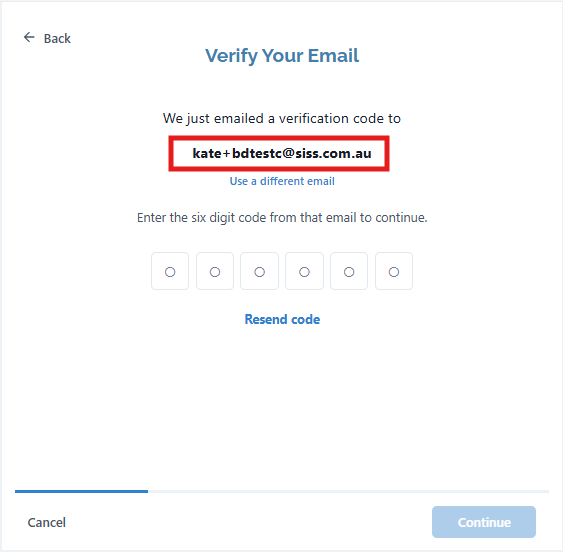
When you connected a bank account via SISS and gave consent to share it with your third party, you used an email address to do this. You will use this same email address to access your ACSISS My Data account.
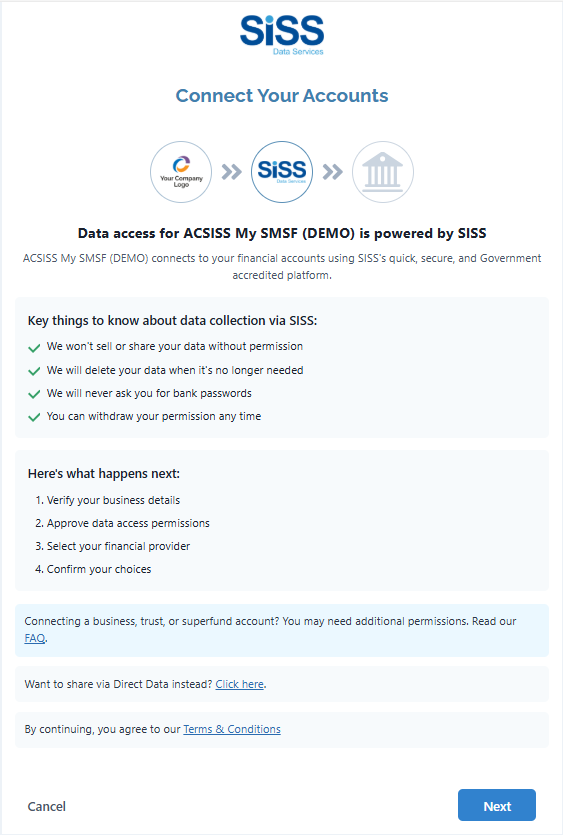
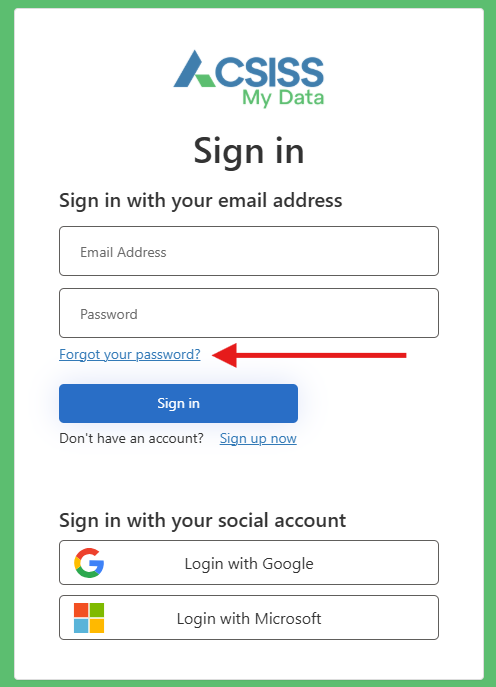
To visit the My Data portal, go to https://app.mydata.acsiss.com.au/ and click ‘Forgot your Password?’
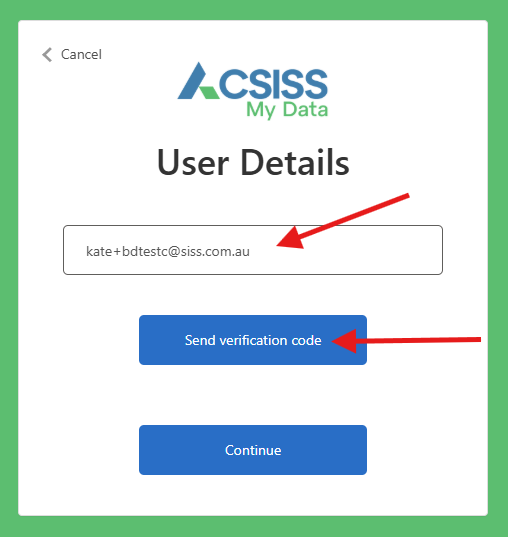
Enter the email address you used in the consent journey when you shared data with a third party (refer to the first two screens in this guide), then click Send verification code
Go to your mailbox and retrieve the code from the Verify your email address email
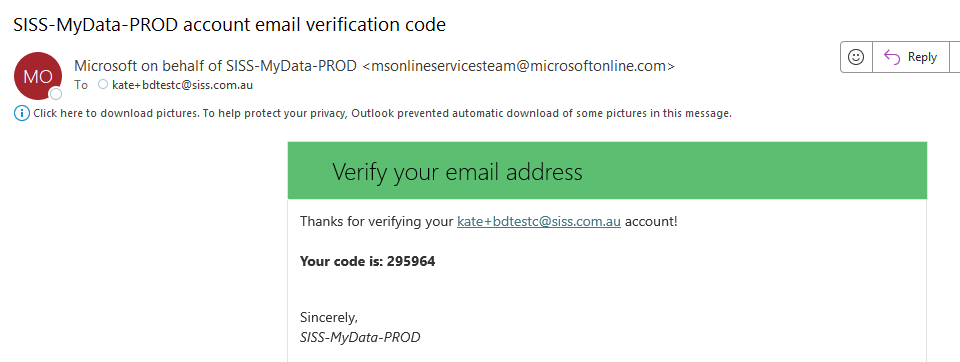
Go back to your browser and enter the Verification code, then click Verify code
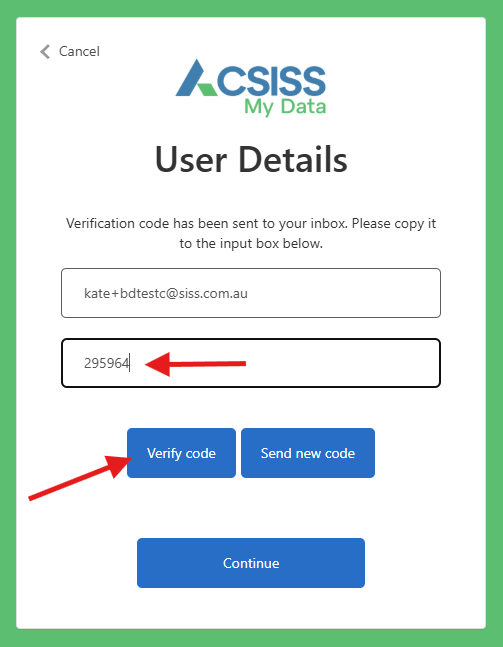
Click Continue
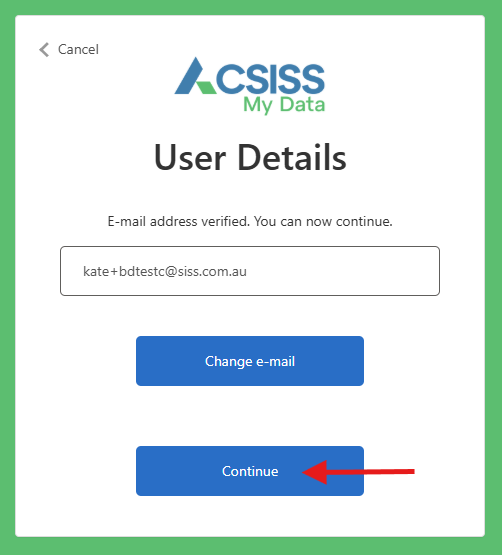
Open your MFA app and scan the QR code, then click Continue
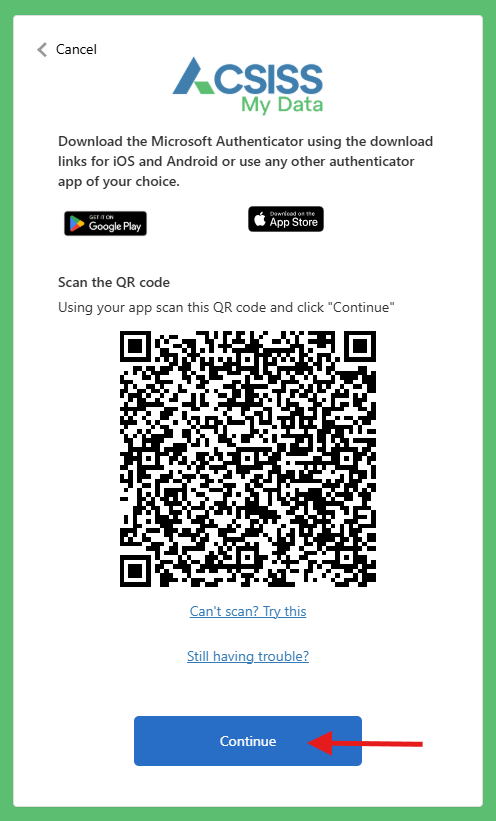
Open the MFA entry you just created and enter the code, then click Verify
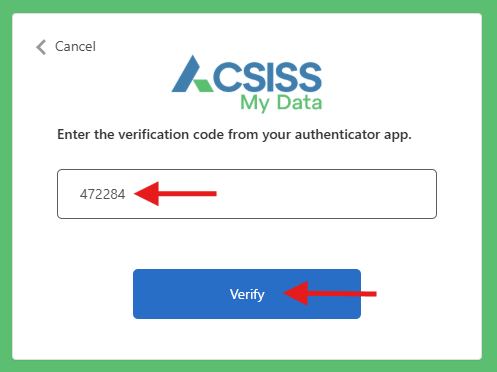
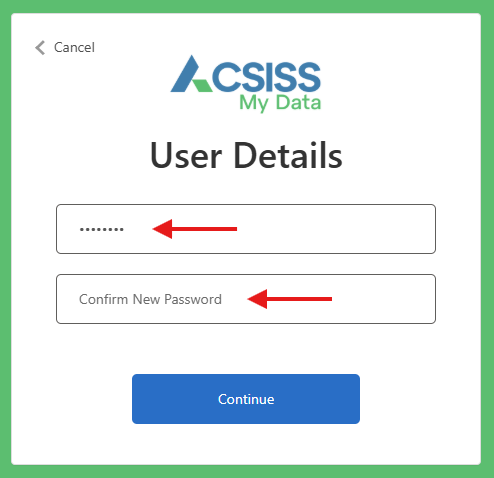
Enter your new password, then enter it again to confirm, then click Continue
You now have access to the My Data portal where you can manage your data sharing permissions.
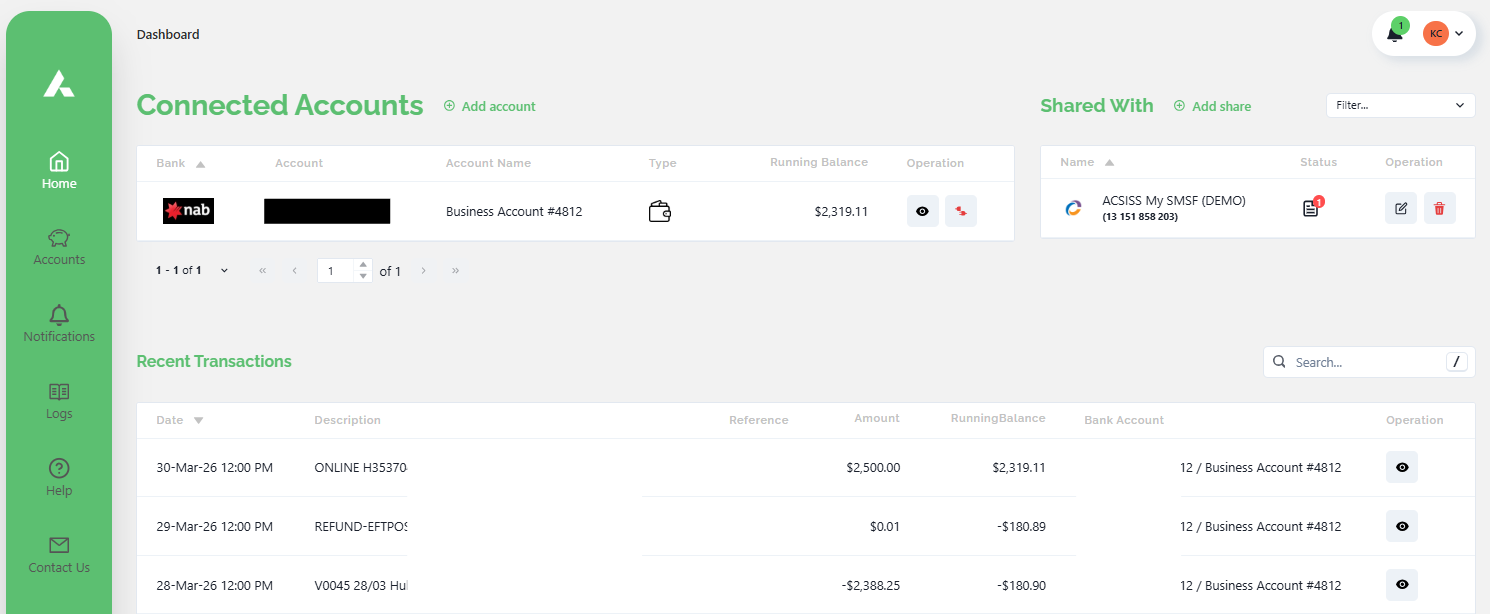
You have successfully set up access to your My Data account.
To access the My Data portal in the future, you must use your email address and PW combo + your MFA app one-time code