.png)
ACSISS Connect provides bank-approved feeds using Open Banking or the Consumer Data Right (CDR) data or direct feeds. This article describes how to set up a bank feed with CDR.
Before You Begin
Please note the following important information:
-
If you are adding a Business Bank account, an additional step may be required by your bank before you can share this account type. Refer to Connect your business bank account | ACSISS Help Center if you do not see your account available to share.
-
You must map your account after connecting it before you can import transactions and balances.
📘 Instructions
-
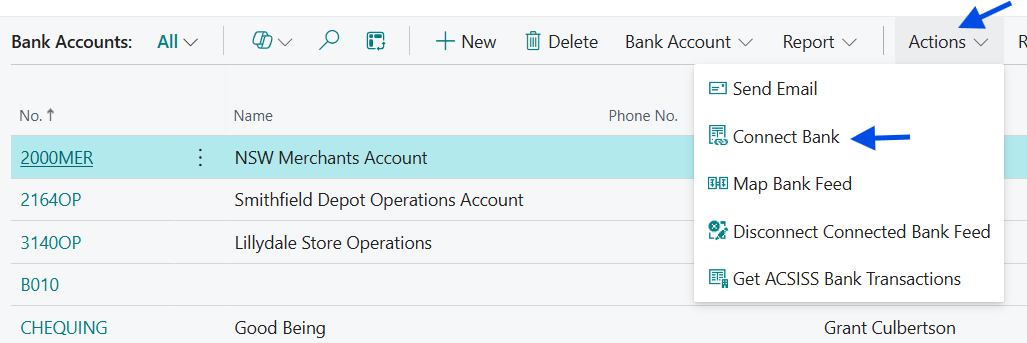
Go to Bank Accounts > Actions > Connect Bank
-
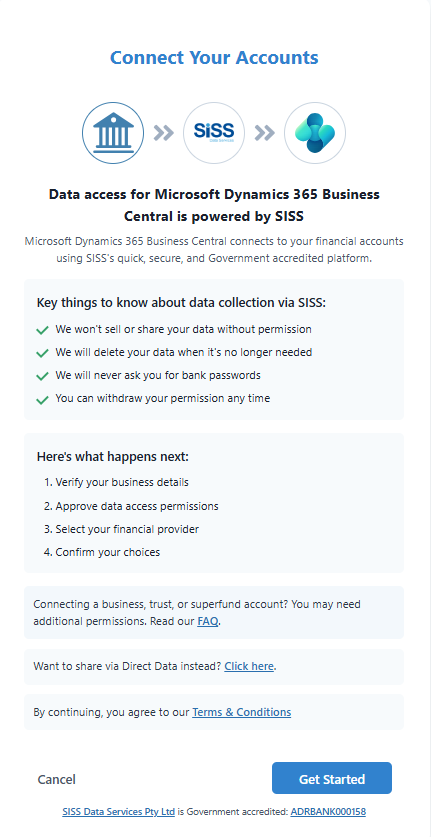
The consent wizard will open in a new tab > click Get Started
-
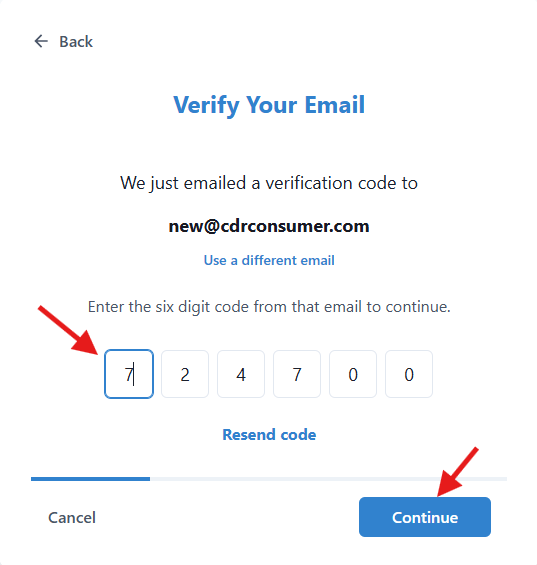
A verification code will be sent to the registered email address for your account. Enter the verification code and select Next. You also have the option to Use a different email or Resend the code.
-
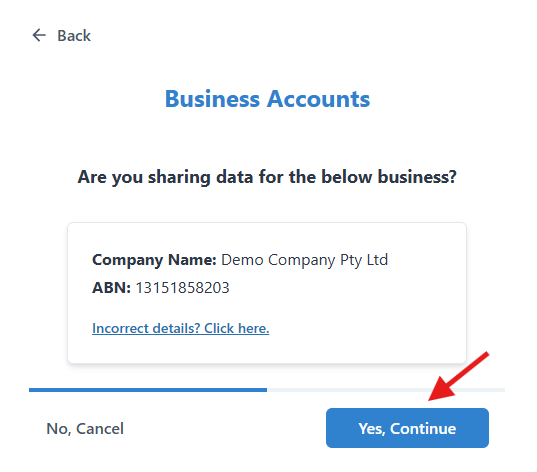
Your Company Name and ABN will be displayed. If these are correct, click Yes, Continue. If not, click the Incorrect details link and enter the correct one.
Note: The ABN displayed comes from the Registration section in the Company Information page in Business Central.
-
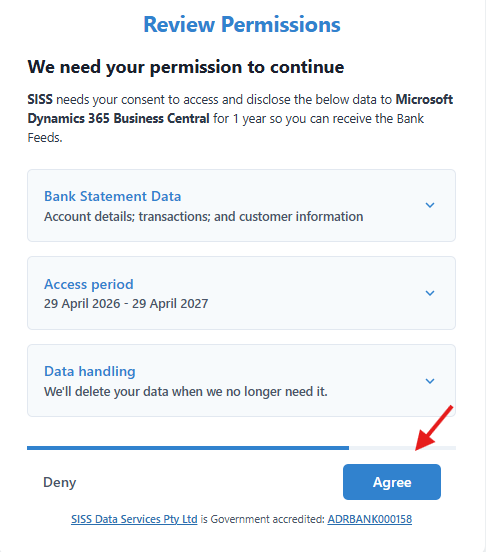
Next is the Review Permissions screen. Expand each section, read through, and click Agree to continue.
-

-
-
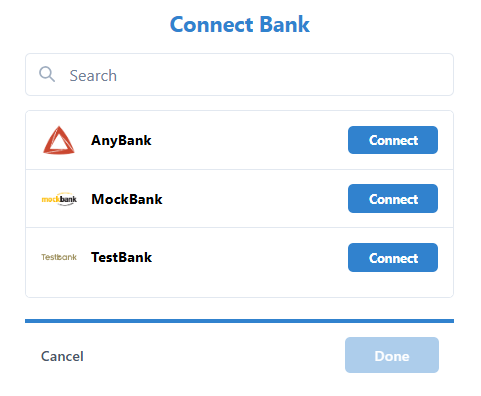
On the next screen, search for and select your bank, then click Connect
-
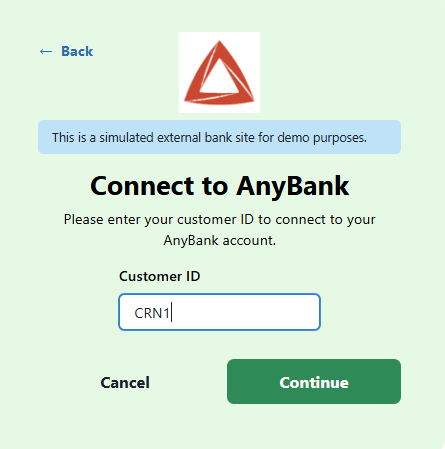
You will be taken to your bank's CDR data sharing portal and asked to enter either a customer ID, mobile phone number, email address, or another form of identification (each bank has its own ID requirements)
-
Enter the required Customer ID and click Continue
-
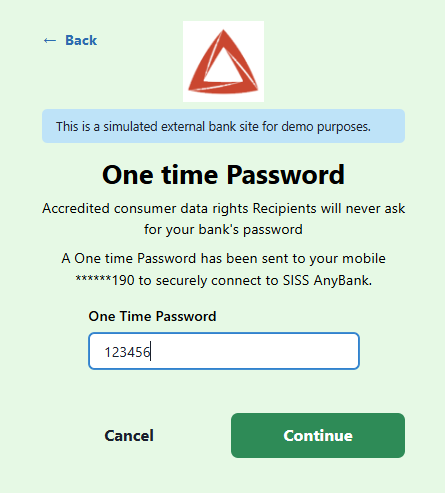
You will receive a One Time Password (OTP) from your bank (this may be via text, email, or sent as a push notification to your online banking app). Enter the OTP and click Continue
-
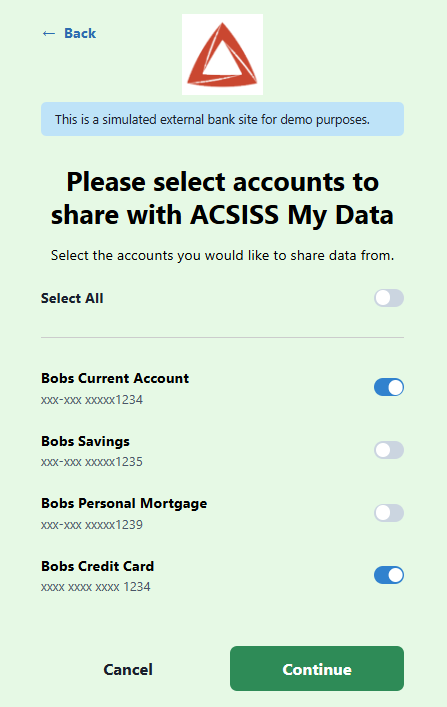
A list of available accounts will be displayed. Select the account(s) you would like to share and click Confirm. You are now sharing these bank accounts with ACSISS.
-
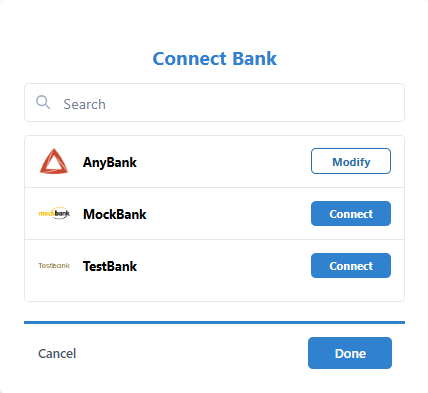
You will be returned to the Connect Bank screen. If you want to connect an account from another bank, you can repeat the instructions from step 6. If you are finished connecting account, click Done.
-
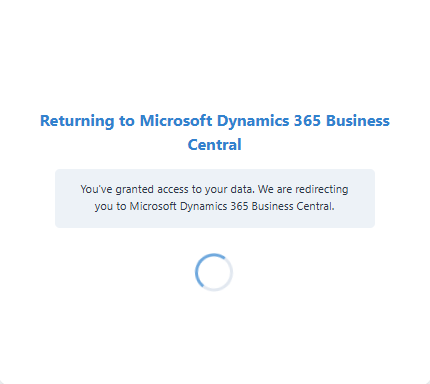
Next, you will see confirmation of your data share with Business Central and will be redirected there.
You are now ready to map your connected bank account. See Map a connected bank account for instructions.