.png)
ACSISS Wizard Customiser
Once Fintech has finished development and is ready to go live, they can add additional customisations to the consent journey and include their brand colours and fonts. Request the SISS Implementation team for the Wizard Customiser.
The Wizard Customiser lets you apply your own branding to the SISS CDR data sharing (consent) wizard and preview the result before it goes live. Once you are happy with the design, you export it as a single JSON file and send it to SISS, and we apply it to your production consent journey.
Before you start, have your logo and icon files, your brand colours as hex codes (for example #3182CE) and your preferred font ready.
Step 1 – Launch the Wizard Customiser
Open the Wizard Customiser folder supplied by SISS and double-click start-demo
A command window opens and starts the Customiser on your computer. The local address, is copied to your clipboard automatically. Keep this window open while you work, because closing it stops the Customiser.
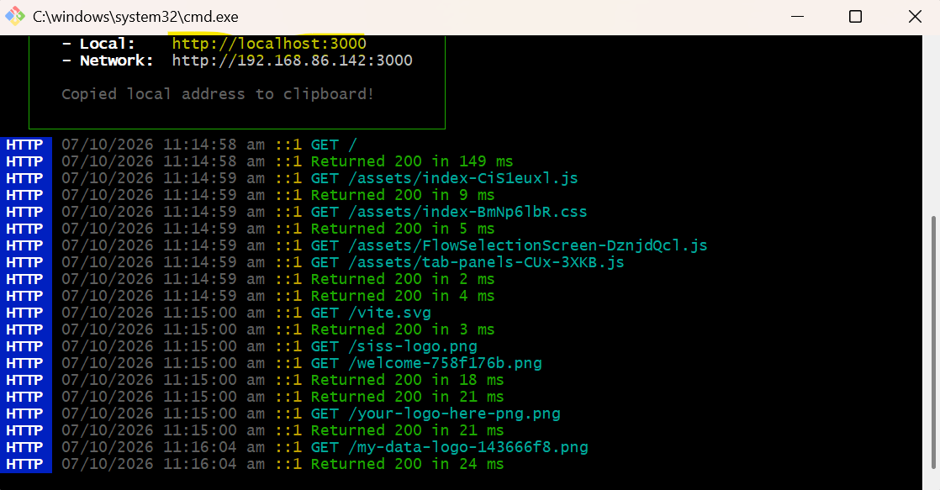
The command window showing the local address
Step 2 – Open the Customiser in your browser
Open your web browser and go to URL (you can paste the address from your clipboard). The home screen gives a quick summary of the process: customise your branding, preview the data sharing wizard, and reset the flow data between preview runs. Your current logo and icon are shown under Customization.
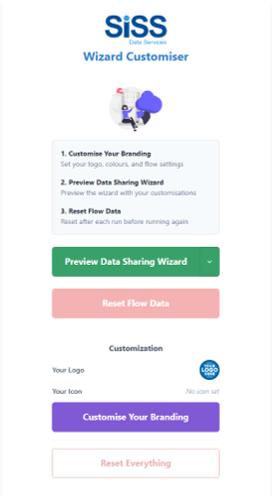
The Wizard Customiser home screen
Step 3 – Customise your branding
Click Customise Your Branding. The settings window has four tabs: Configuration, Software Product, Visual Style and Export & Import. Most of the branding is set on the Visual Style tab, which is split into Colours, Controls, Typography and App Preview.
|
Area |
What you can set |
|
Colours |
Primary brand colour (also applied to form controls, checkboxes and focus rings), heading colour, link colour, info box colour (neutral shaded boxes such as “Key things to know”), accent box colour (highlighted boxes such as FAQs and business warnings) and wizard background. |
|
Controls |
Primary action button (background, text and border), progress bar colour, and the bank buttons, Connect and Modify (background, text and border). |
|
Typography |
Font family, body text alignment and heading alignment. |
|
Logo and icon |
The logo and icon that identify your software in the wizard. |
Enter colours as hex codes or use the colour picker. Fields marked (optional) can be left blank. Click Save to keep your changes, or Cancel to discard them.
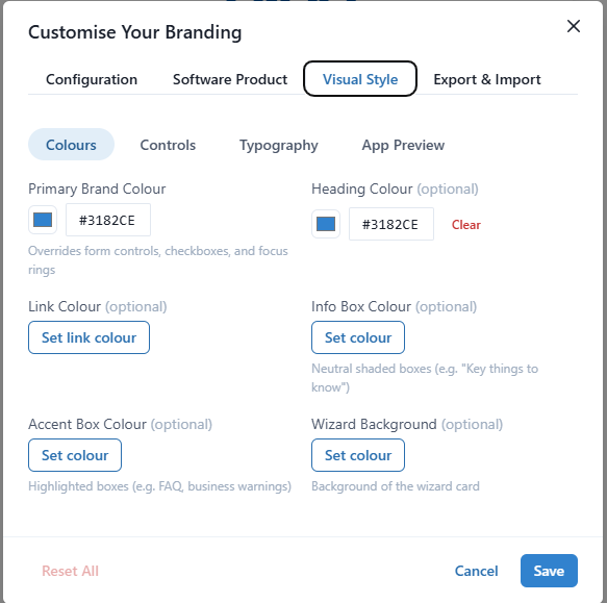
Visual Style > Colours
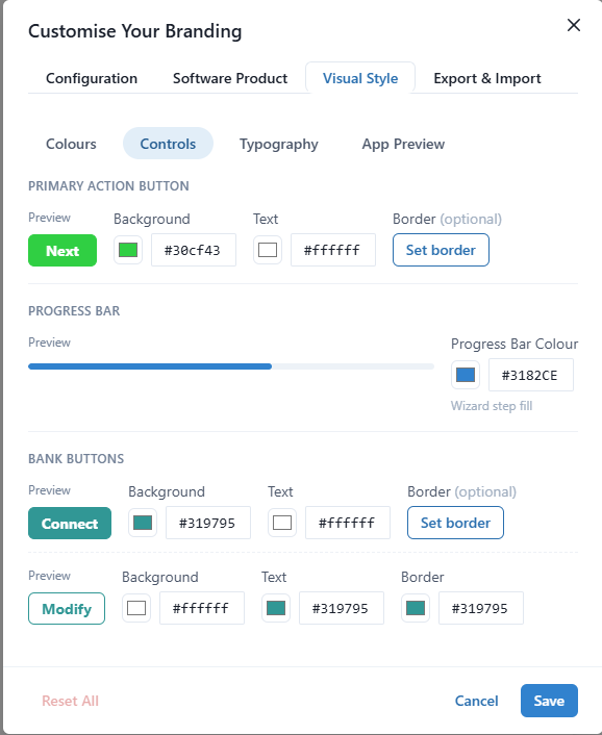
Visual Style > Controls
Step 4 – Preview your branded wizard
Back on the home screen, click Preview Data Sharing Wizard to step through the consent journey with your branding applied.
Avoid Reset Everything unless you want to start over, because it clears all of your branding settings.
Step 5 – Export your design and send it to SISS
Open Customise Your Branding, go to the Export & Import tab and click Export Chakra Theme JSON. Don’t export Full Settings as that is for internal use only. This saves a JSON file containing all of your branding, theme and configuration settings, with your logos embedded, so it is the only file we need.
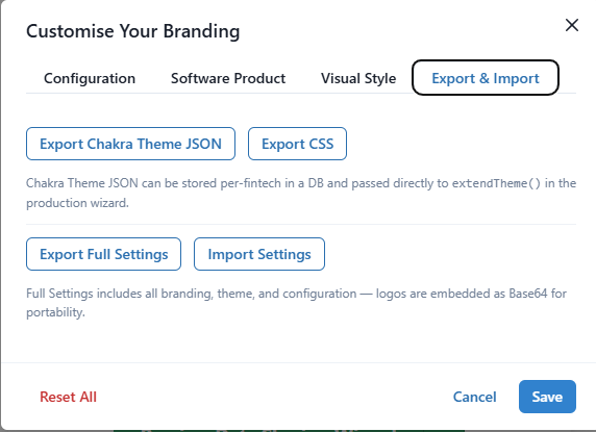
The Export & Import tab
Email the JSON file to your implementation lead with your company and software product name. If you need to make changes later, use Import Settings to load your saved file, update it and export it again. The Export Chakra Theme JSON and Export CSS options are not required unless SISS asks for them.
CDR branding limitations
The consent journey is a regulated Consumer Data Right (CDR) experience, so it cannot be customised in the same way as a normal software interface.
SISS is responsible for ensuring the consent experience continues to meet the relevant CDR regulatory, security and transparency requirements. As a result, Platform customers cannot change the layout, wording, regulatory disclosures, consent steps, buttons or other core elements of the journey.
Branding is intentionally limited to the areas that help end customers recognise the software they are using, while keeping the required CDR information and user experience consistent. This balances white-labelled software recognition with the regulatory requirements that apply to CDR consent and data sharing.
Key principle: Platform customers can brand the consent experience to identify their software, but the underlying CDR consent journey remains controlled by SISS to ensure regulatory compliance.