.png)

How to amend your consent before it expires
You will start the Amend Consent wizard from the connected application, the ACSISS My Data portal, or an expiry reminder email.
Throughout this guide, the user is amending their consent with Bankwest, and the bank screens shown are Bankwest's. Other banks and financial institutions will ask you to take the same or similar steps, but their screens will look different and carry their own branding.
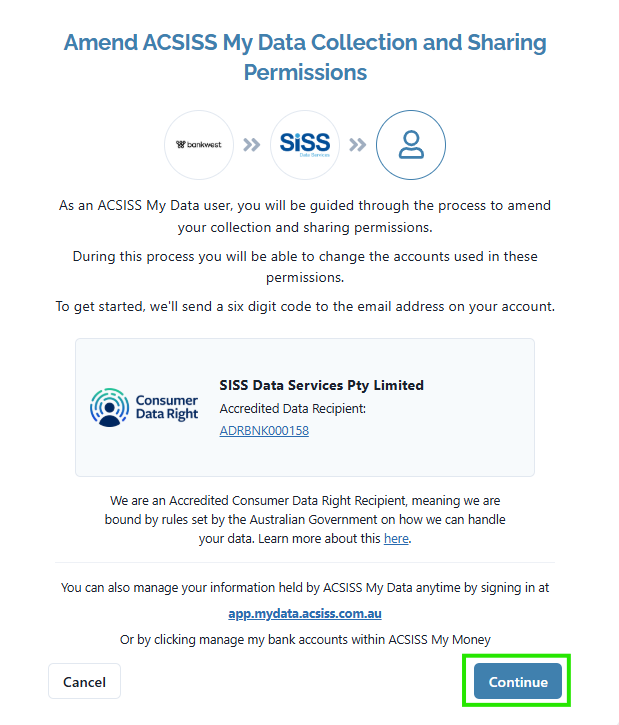
You will start on the Amend ACSISS My Data Collection and Sharing Permissions screen > read about the process > click Continue. A six-digit code will be sent to the email address on your ACSISS My Data account.
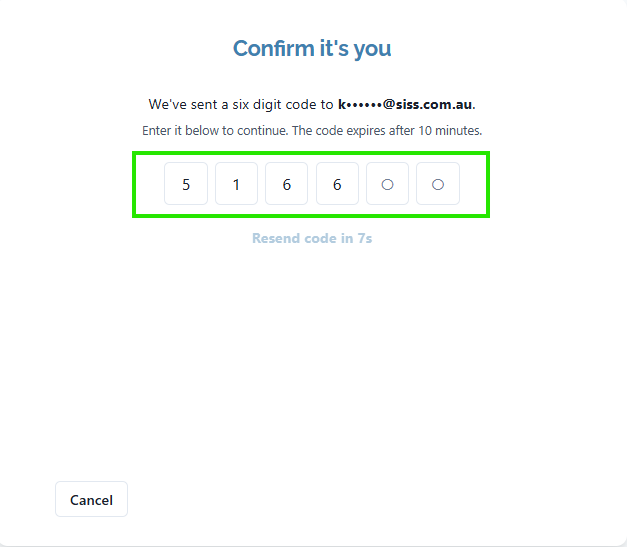
Go to the mailbox that the six-digit code was sent to and copy it > on the Confirm it's you screen, enter the code. The code expires after 10 minutes. If you don't receive it, click Resend code once the timer runs out.
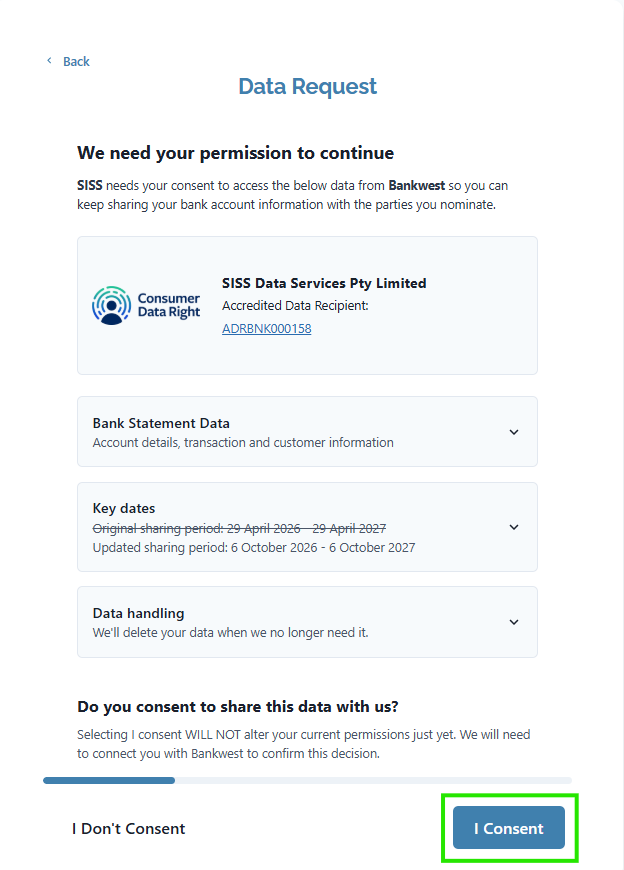
On the Data Request screen, review the data being requested, the key dates (your original sharing period and your updated sharing period), and how your data is handled > click I Consent
Clicking I Consent does not change your current permissions yet. You will be taken to your bank to confirm.
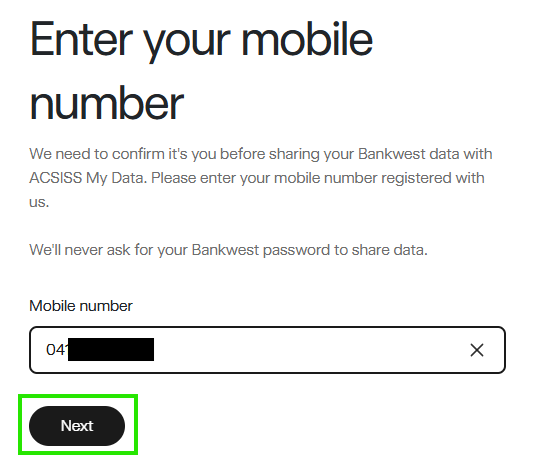
You will be redirected to your bank > enter the ID that the bank asks for (Bankwest asks for your mobile number; other banks may ask for a customer reference number or another form of ID) > click Next
Your bank will send you a one-time password (OTP), enter it and continue.
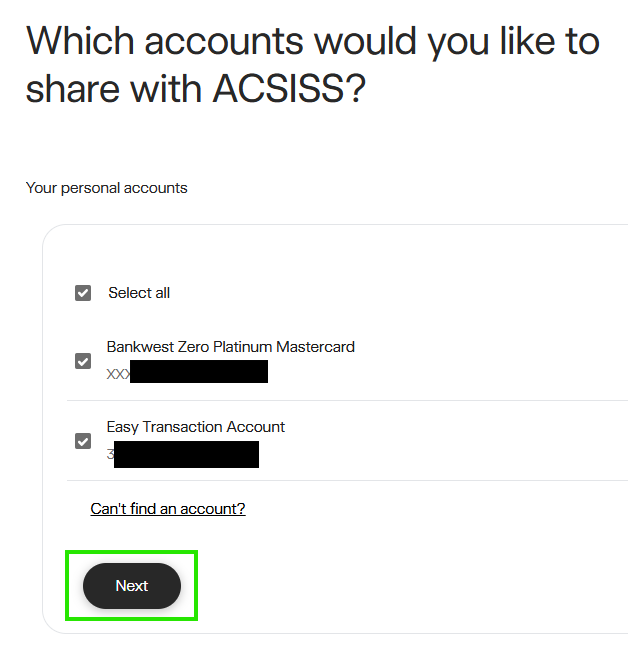
Select the accounts you want to share with ACSISS > click Next
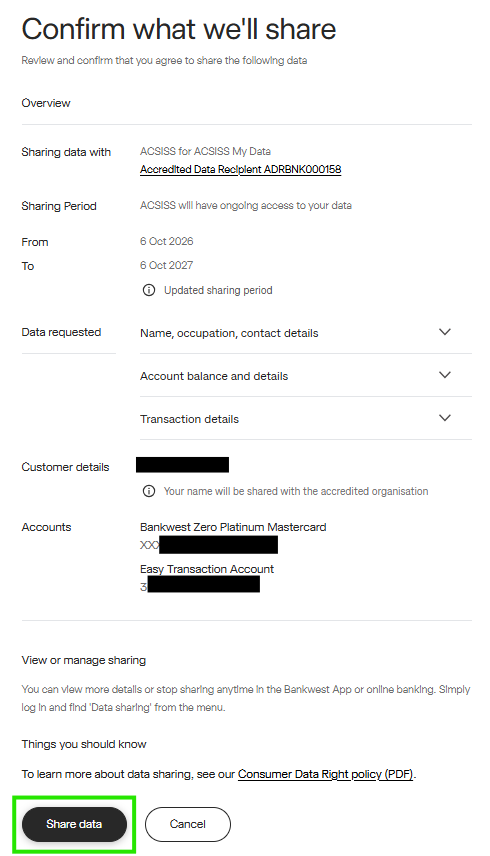
On the Confirm what we'll share screen, review the updated sharing period, the data requested, and the accounts you selected > click Share data
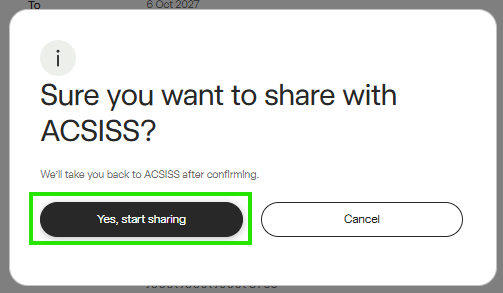
Click Yes, start sharing to confirm. You will be taken back to ACSISS.
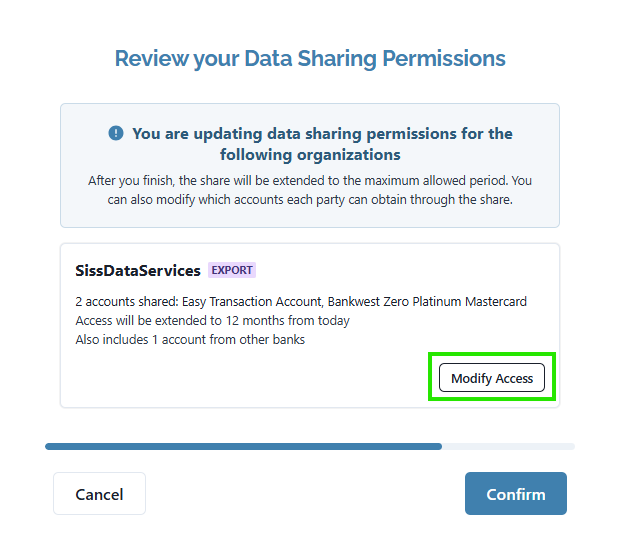
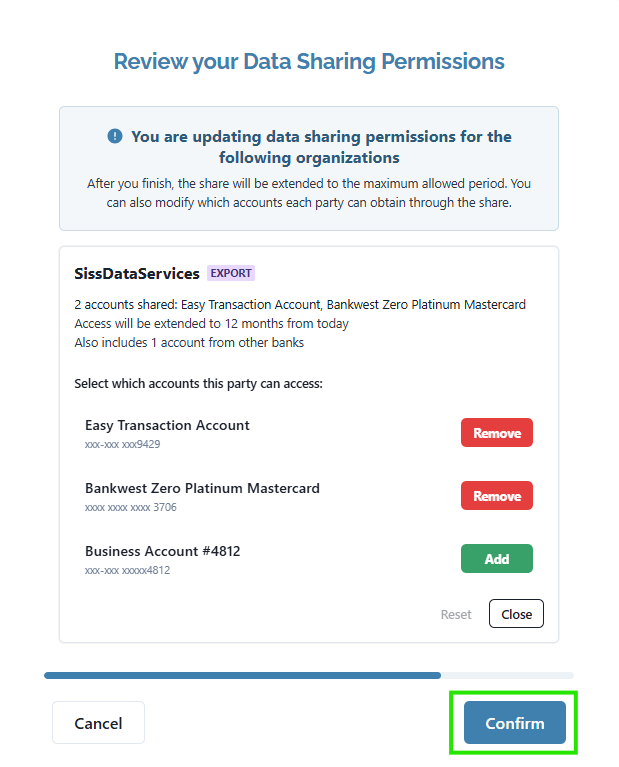
On the Review your Data Sharing Permissions screen, check the applications your data is shared with. Each share will extend to 12 months from today.
If you want to change which accounts an application can access > click Modify Access
If you don't need to make any changes > click Confirm
If you clicked Modify Access, click Add or Remove next to each account > click Close when you're done > click Confirm
The list may include accounts from other banks you have already connected. To undo your changes, click Reset.
The Your Permissions are Updated screen shows a summary of your updated permissions > to download a receipt for your records, click Show Receipt > click Finish
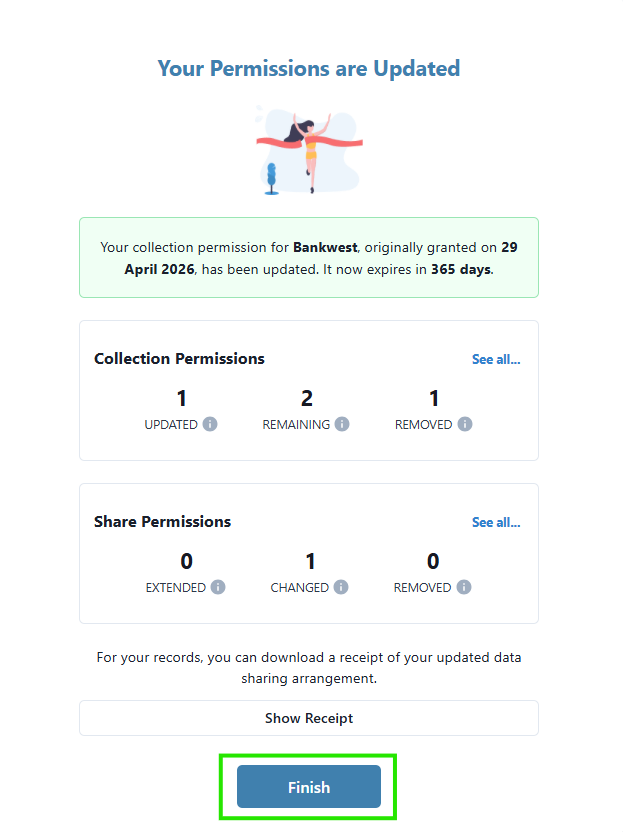
Your consent has been updated, and your bank data will continue to flow to your connected application